PURCHASE INVOICE IMPORT
Smart Purchase
InvoiceProcessing
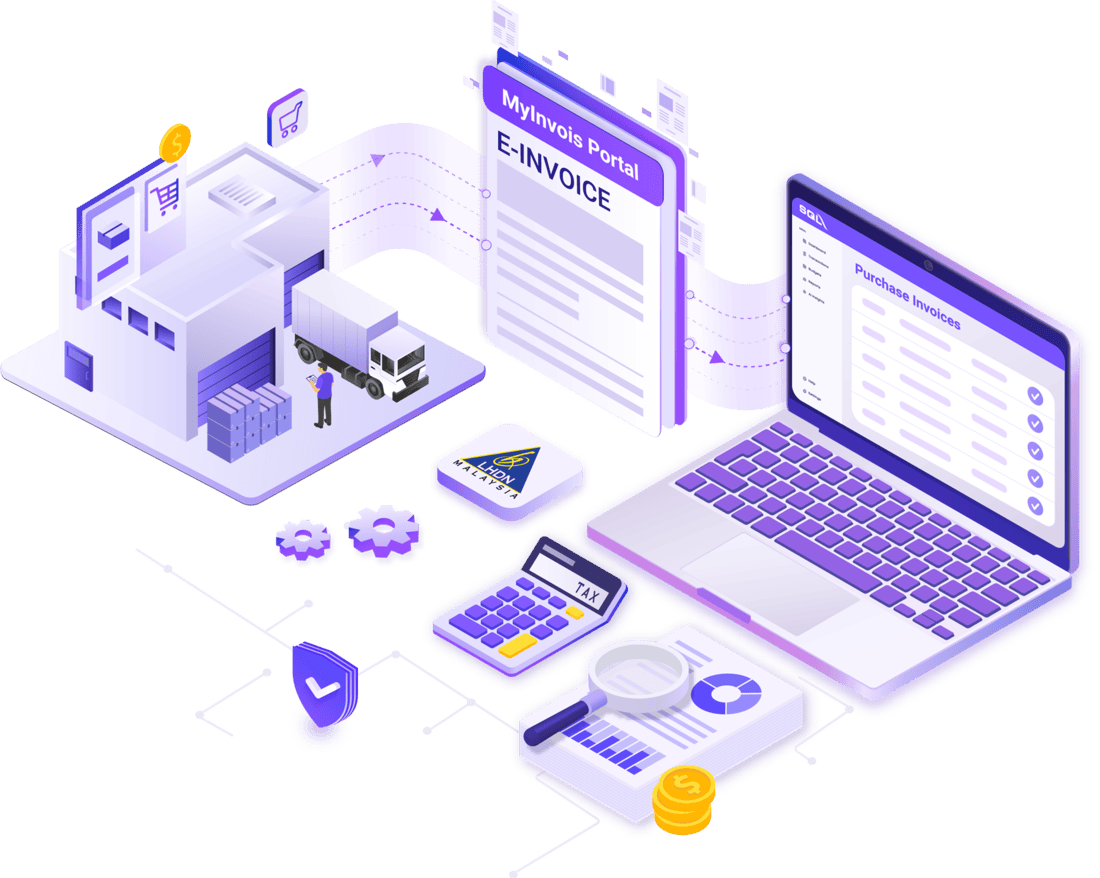
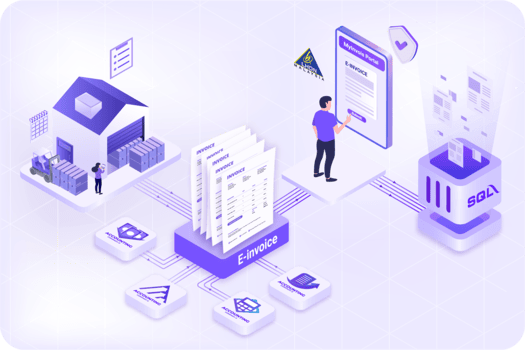
Import supplier e-Invoices directly from the MyInvois Portal into SQL Accounting, reducing manual data entry while improving accuracy and speeding up purchase invoice processing.
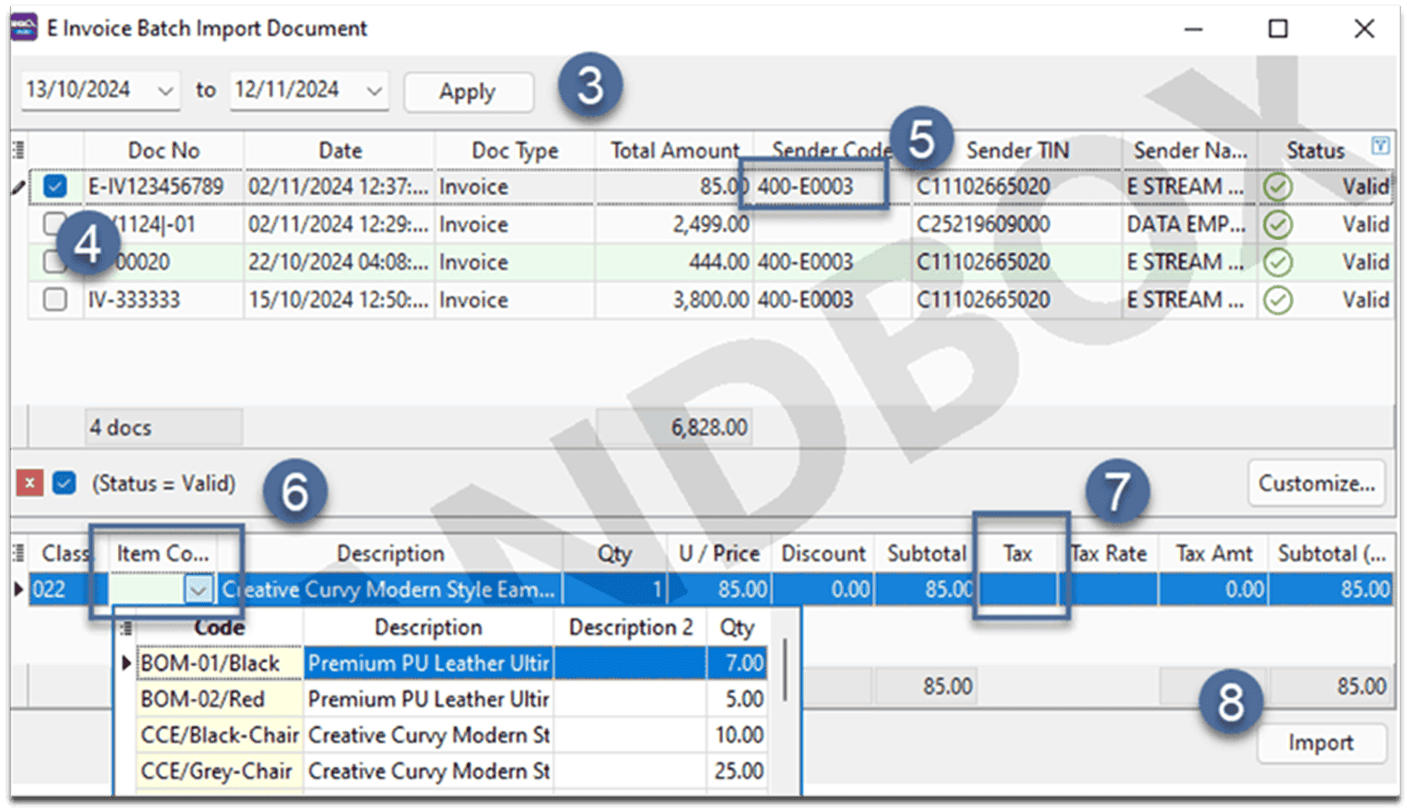
- Go to Purchase Invoice in SQL system
- Click the dropdown arrow at the top right to open options
- Select Batch Import E-Invoice
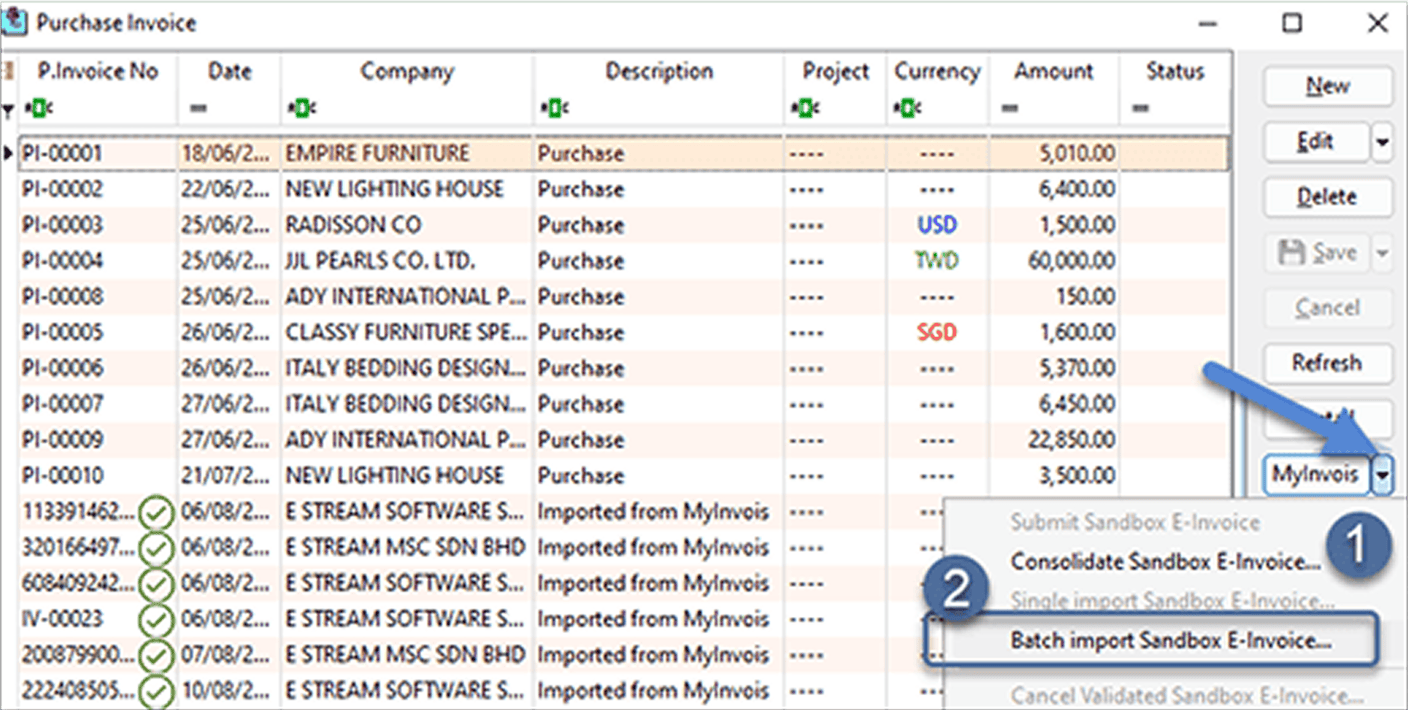
- Select the invoice date range
- Click Apply to load the list of e-invoices available for import
-
The system will auto-match:
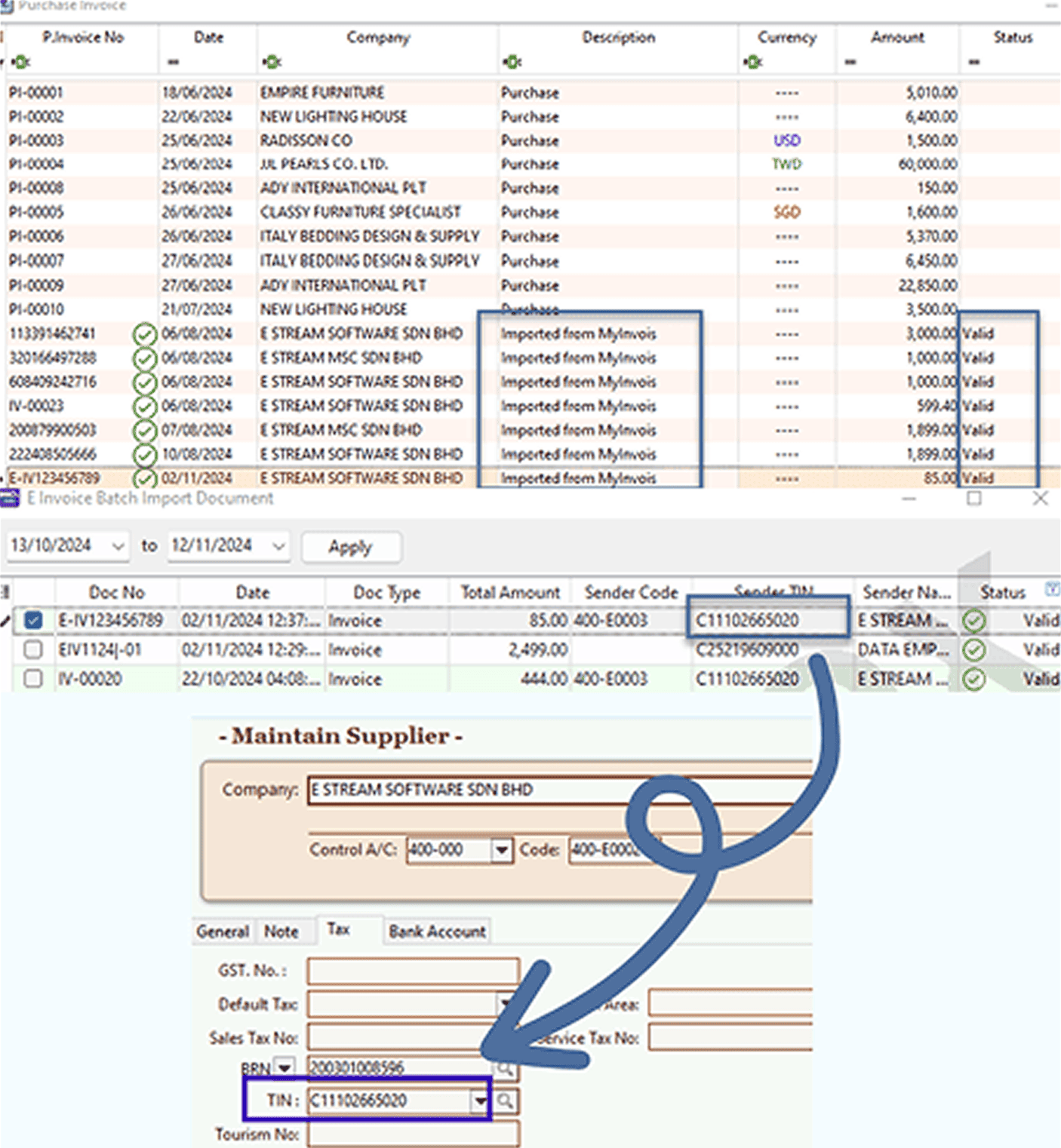
- Supplier Code – Must be configured in Maintain Supplier under the TIN Number field.
- Item Code – Must be configured in Stock Item Supplier Item and should match the Supplier Description.
- Tax Code – Applicable only if your company is registered for SST and the SST feature has been enabled in SQL.
💡 These must be pre-configured in Maintain Supplier - Review the details, then click Import
-
Successfully imported invoices will show :
- Imported from MyInvois
- Valid Status
- Go to Purchase Invoice in SQL system
- Click the dropdown arrow at the top right to open options
- Select Batch Import E-Invoice
- Select the invoice date range
- Click Apply to load the list of e-invoices available for import
-
The system will auto-match:
- Supplier Code – Must be configured in Maintain Supplier under the TIN Number field.
- Item Code – Must be configured in Stock Item Supplier Item and should match the Supplier Description.
- Tax Code – Applicable only if your company is registered for SST and the SST feature has been enabled in SQL.
💡 These must be pre-configured in Maintain Supplier - Review the details, then click Import
-
Successfully imported invoices will show :
- Imported from MyInvois
- Valid Status
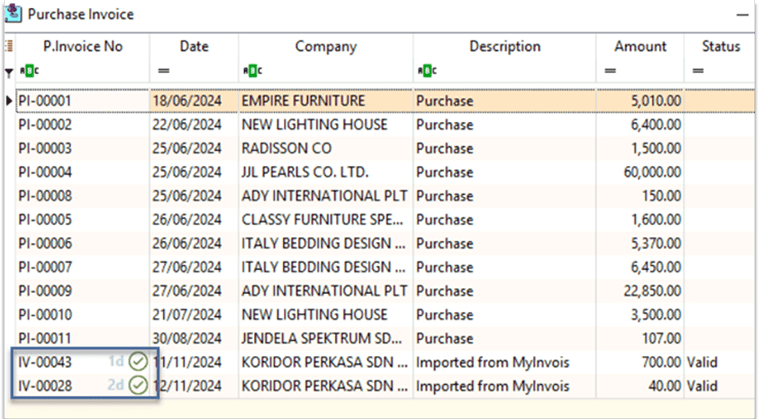
Invoice Rejection Alert

Invoices with errors can be rejected within
72 hours of submission.
The system will show the remaining rejection period,
such as 3d, 2d, or 1d.
- Go to Purchase Invoice
- Click the dropdown arrow, then choose Reject Validated E-Invoice
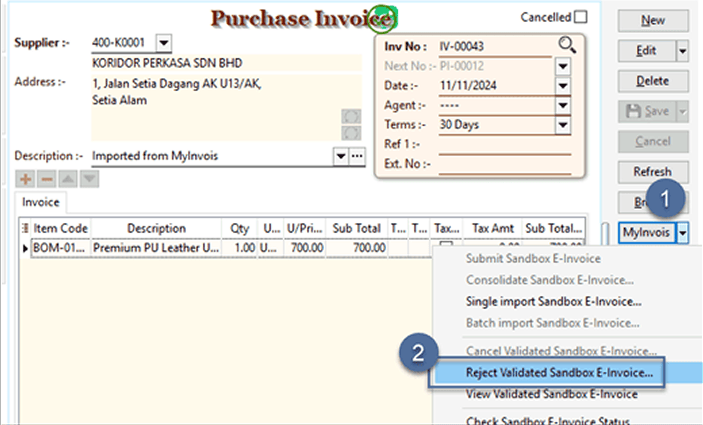
- Select the invoice you wish to reject
- Type in the Rejection Reason
- Click Initiate Rejection
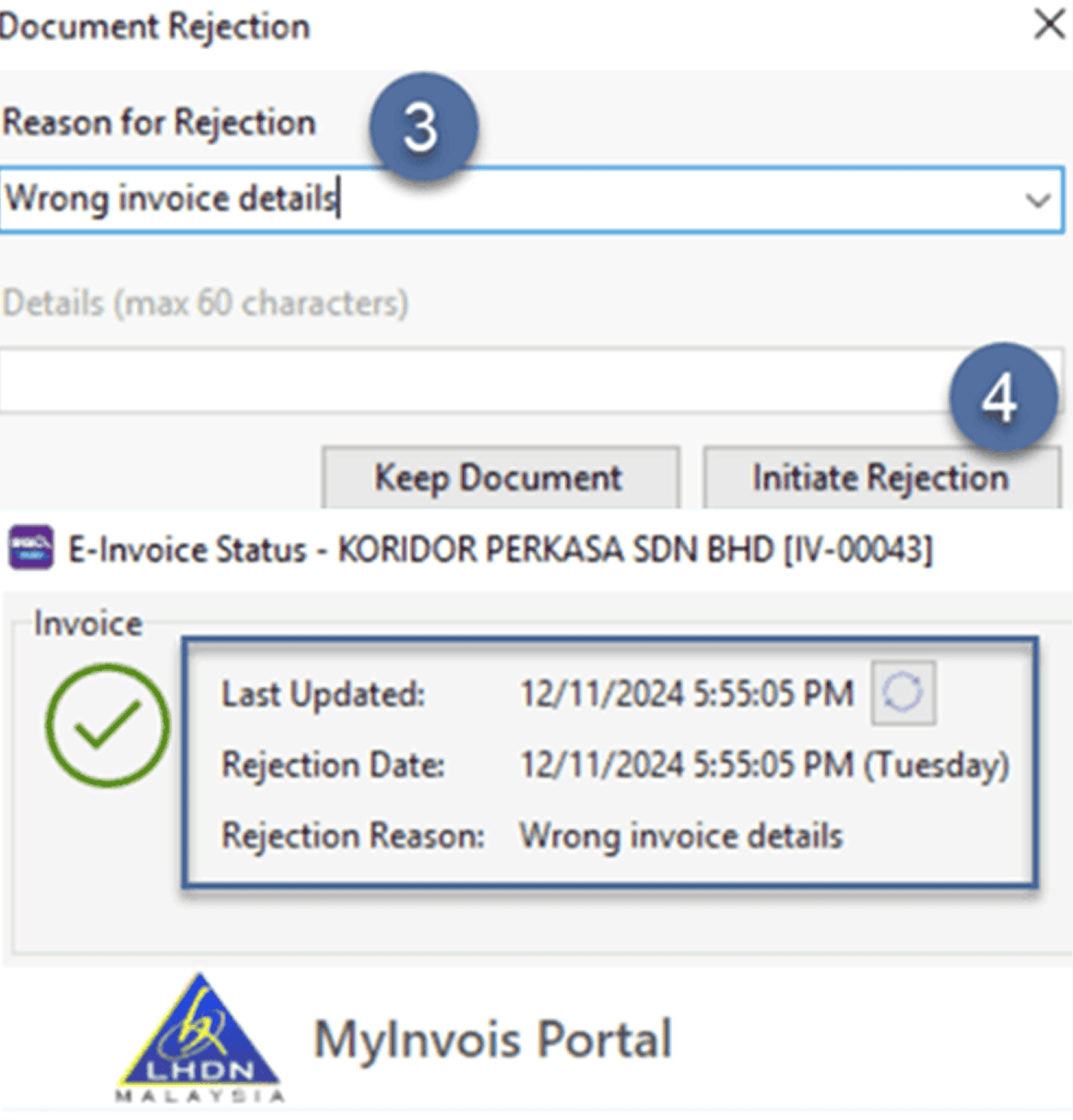
- MyInvois Portal will automatically update the invoice to Rejected
- Go to Purchase Invoice
- Click the dropdown arrow, then choose Reject Validated E-Invoice
- Select the invoice you wish to reject
- Type in the Rejection Reason
- Click Initiate Rejection
- MyInvois Portal will automatically update the invoice to Rejected
Related Posts