
Can an E-Invoice be Modified or Deleted?
Can an E-Invoice be modified or deleted? YES!

Can an E-Invoice be modified or deleted?
Yes! But the method depends on whether the E-Invoice is already Validated and whether it’s within or after 72 hours of submission.
Supported E-Invoice Document Types:
Invoice
Credit Note
Debit Note
Refund Note
Self-billed Invoice
Self-billed Credit Note
Self-billed Refund Note
Within 72 Hours – Modify or Cancel a Validated E-Invoice
If the E-Invoice was validated within the last 72 hours, you can cancel and edit it directly.
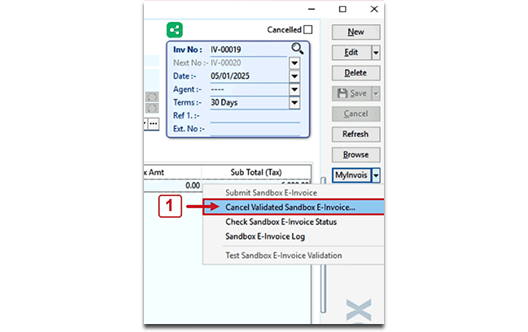
Go to MyInvois, choose “Cancel Validated E-Invoice”
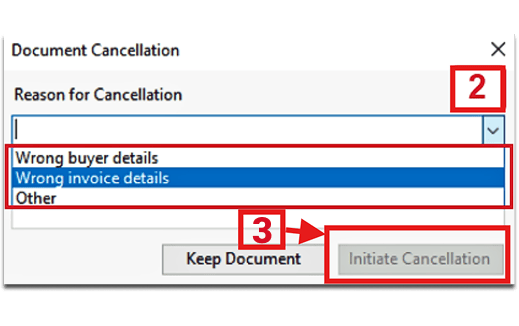
Select the invoice and state the reason for cancellation
Click “Initiate Cancellation”
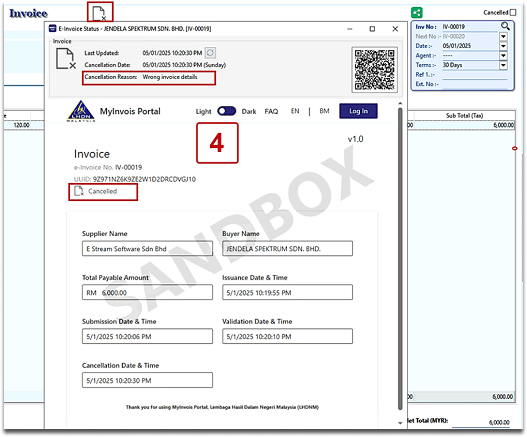
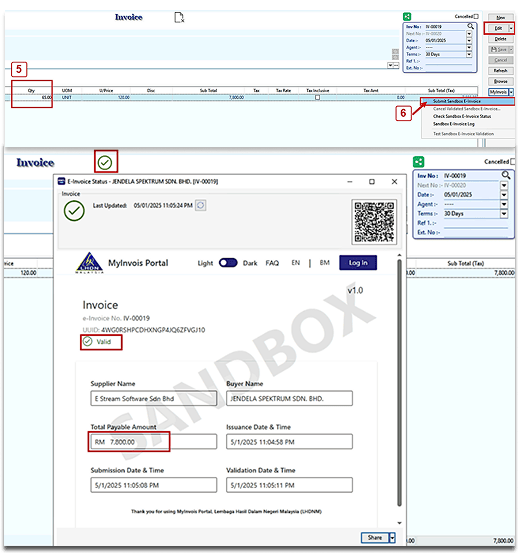
Once cancelled, the invoice status will update and allow you to edit it
After editing, click “Submit E-Invoice” to resend to LHDN
After 72 Hours – Modify via Credit Note
If the E-Invoice has been validated for more than 72 hours, you cannot directly cancel or edit it. Instead, use a Credit Note to make corrections.
✨ Method 1: Create New Credit Note (For non-stock related issues)
Use when:
Discount or pricing errors
No stock/inventory is involved
✨ Method 2: Transfer to Credit Note / Transfer from Sales Invoice (For stock-related issues)
Use when:
Items are returned or stock quantity is incorrect
Method 1: Create New Credit Note (For non-stock related issues)
Use when:
Discount or pricing errors
No stock/inventory is involved
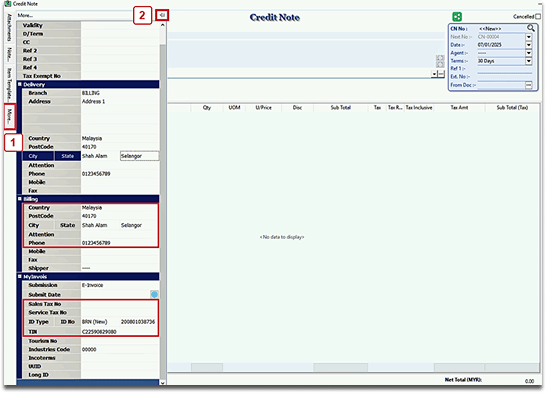
Go to the Sales Credit Note page.
Click on “More” at the top right and select “Credit Note”.
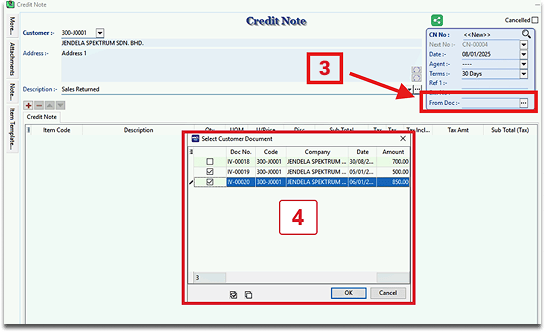
On the page, click the “From Doc +…” button.
The system will display related Invoices and Cash Sales for the customer.
Select the Invoice(s) or Cash Sales document(s) to cancel or adjust.
The selected document data will be automatically imported into the Credit Note.
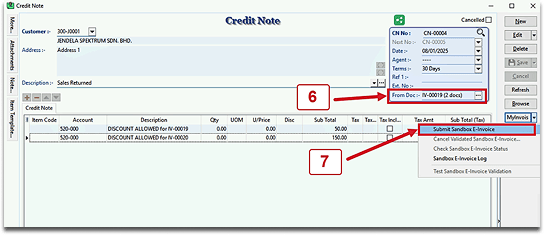
Verify all details, then click “Submit E-Invoice” to submit the new e-invoice.
Method 2: Transfer to Credit Note / Transfer from Sales Invoice (For stock-related issues)
Use when:
Items are returned or stock quantity is incorrect
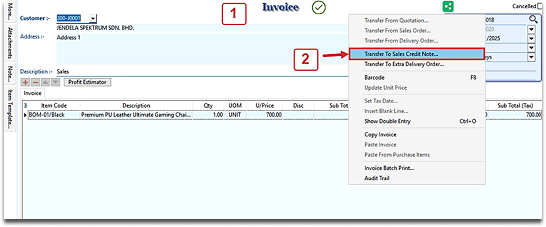
Open Original Sales Invoice
Locate the validated invoice (older than 72 hours)
Transfer to Credit Note
Option A: Use “Transfer to Sales Credit Note” from the invoice.
Transfer to Credit Note
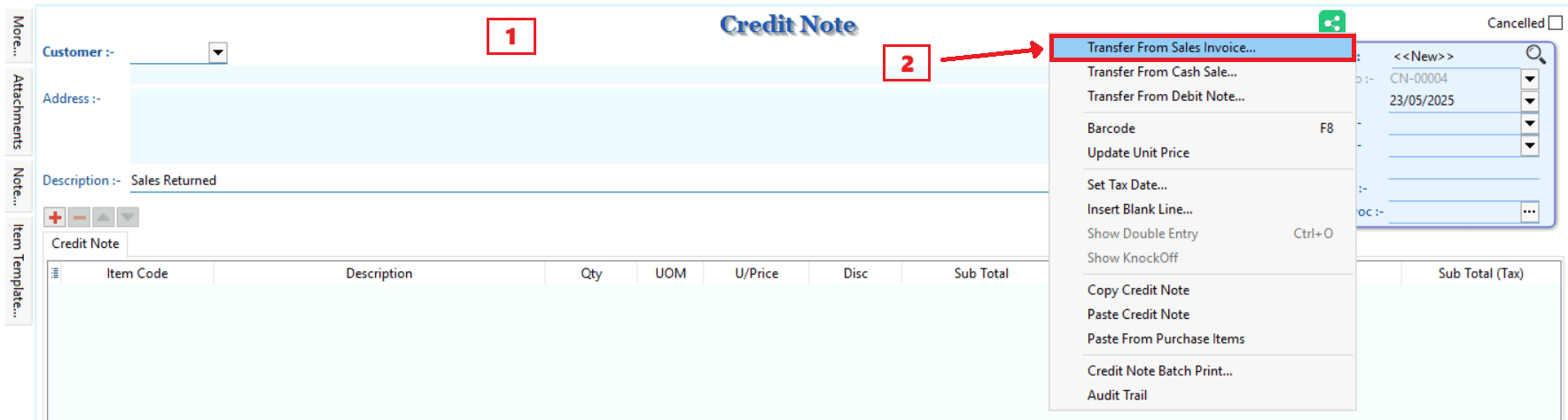
Option B: Go to Credit Note → “Transfer from Sales Invoice”.
Transfer from Sales Invoice
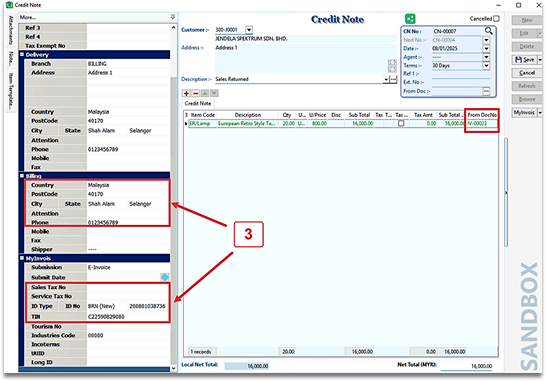
Edit Credit Note
Adjust item quantity or details.
Confirm the linked invoice in “From Doc No”.
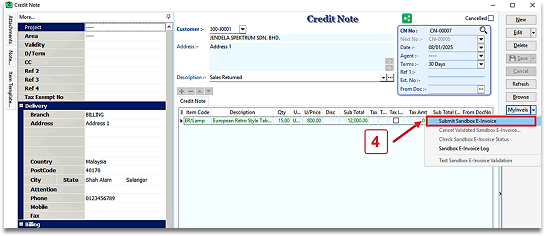
Submit to LHDN
Click “Submit E-Invoice” to send the correction.
Share This Page
Share
Tweet
Related Posts