
Fast Report: Add LHDN E-Invoice QR in 6 Easy Steps | E Stream MSC

Capture LHDN QR Code To Display in Fast Report

How to add E-Invoice QR Code into a Fast Report?

  1. Click on the Preview Report and then choose a fast report. (e.g. Sales Invoice 7, 8, 10, 11 and 12)
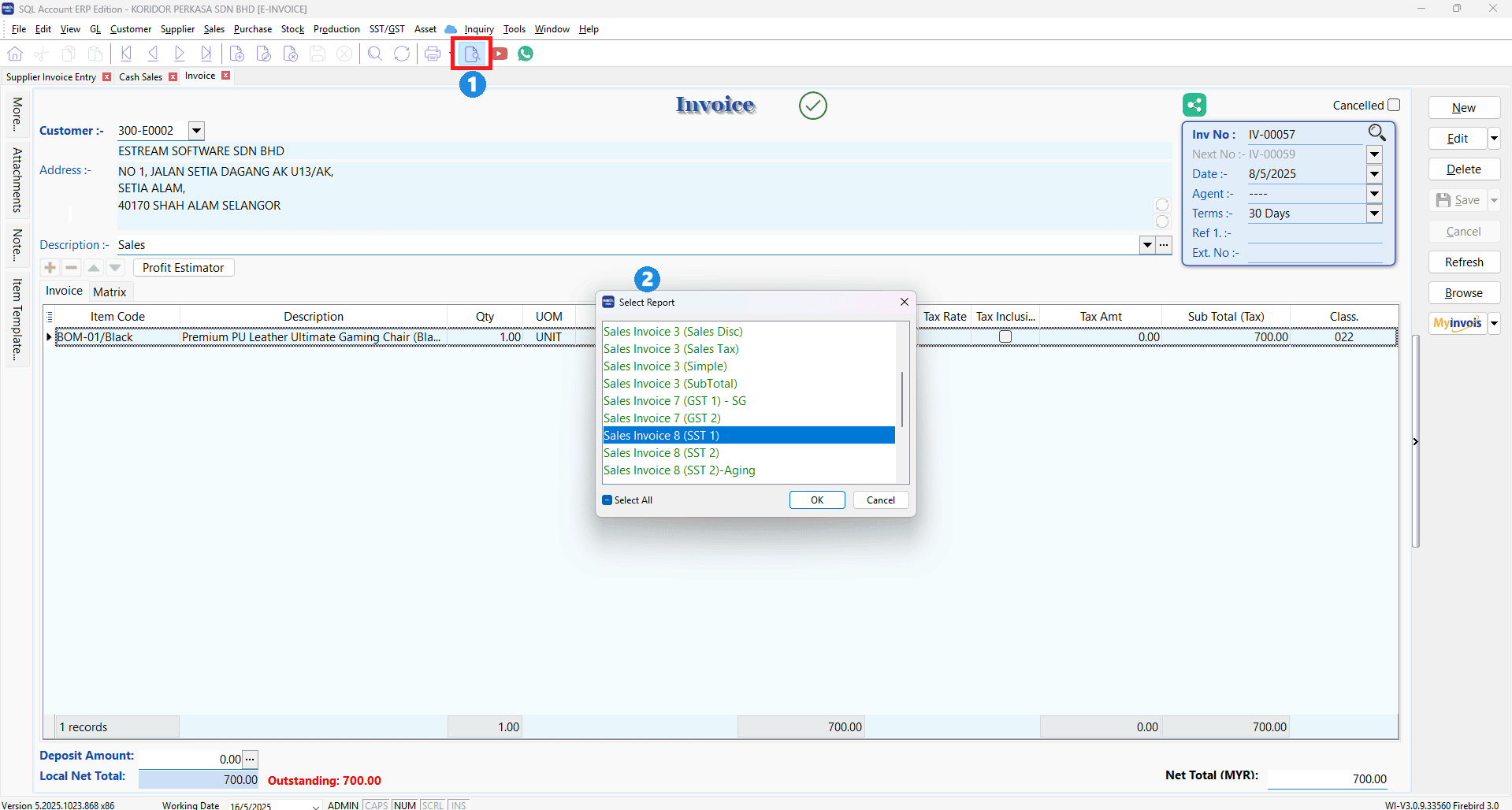
    Capture LHDN QR Code to display in Fast Report - Step 1

  2. Click on the company (blue) at the bottom of the screen
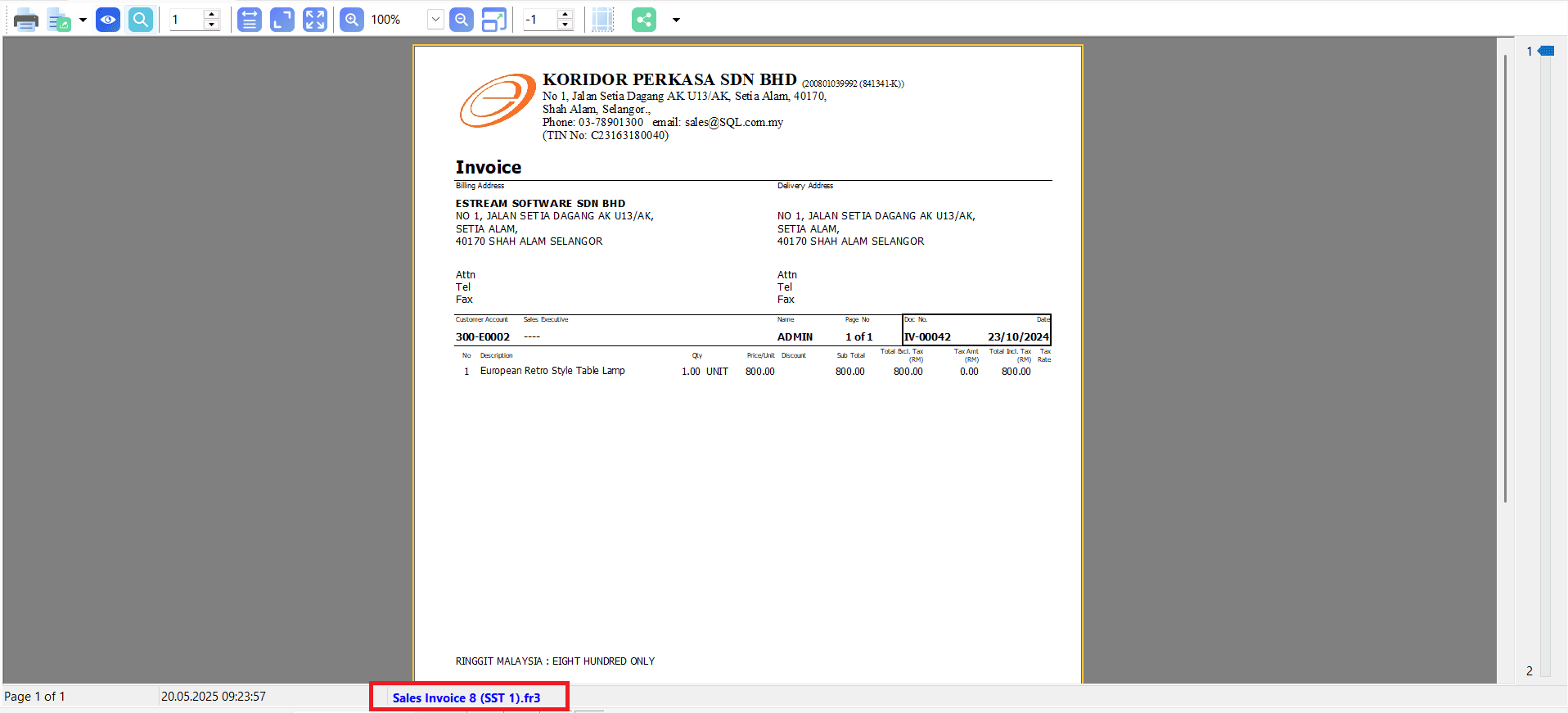
    Capture LHDN QR Code to display in Fast Report - Step 2

  3. The below screenshot shows the FastReport
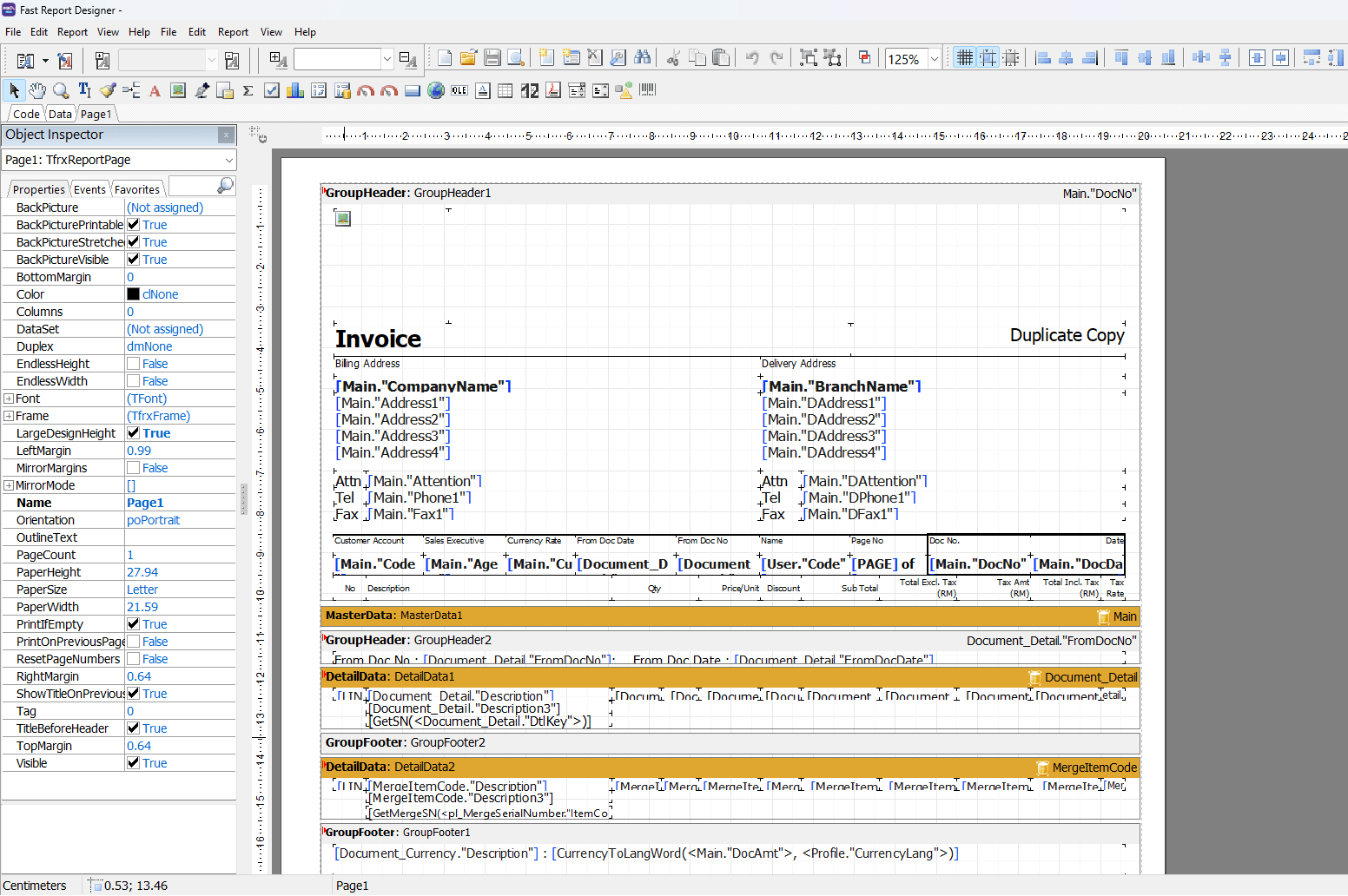
    Capture LHDN QR Code to display in Fast Report - Step 3

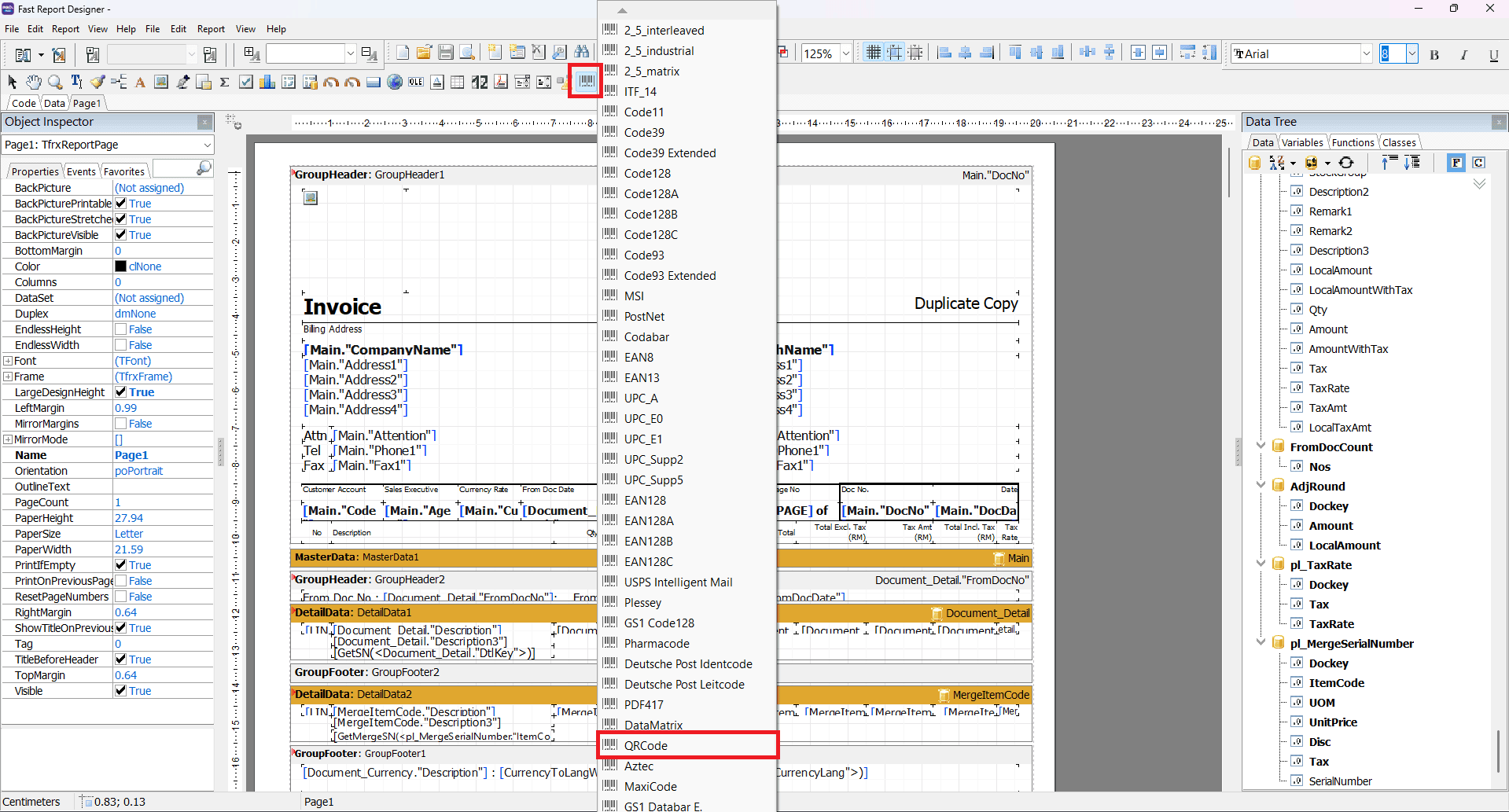
  4. At the tool bar, select ‘Barcode’

    Capture LHDN QR Code to display in Fast Report - Step 4

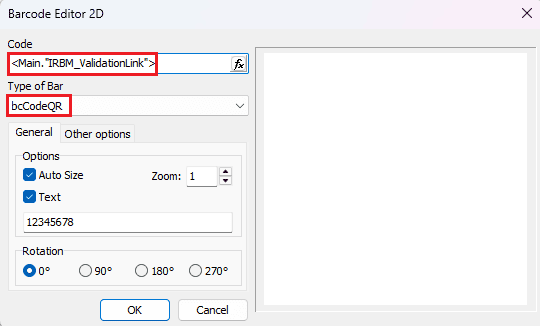
  5. After you select the ‘QRCode’, the system will prompt out a Barcode Editor 2D screenCapture LHDN QR Code to display in Fast Report - Step 5

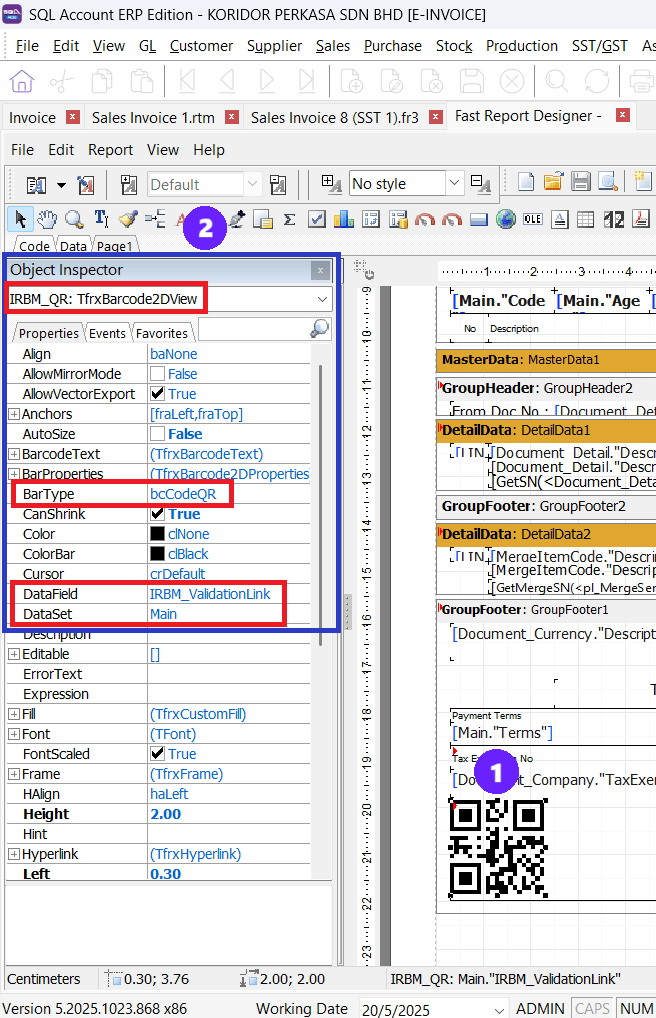
  6. Place the 1 QR Code accordingly and then set the 2 Properties.Capture LHDN QR Code to display in Fast Report - Step 6

Share This Page

STEP 1: Scan QR Code to pay

SQL

STEP 2: Click here to email payment info

Overview
👋 Hi! Tap to send an enquiry

Contact Us

    This site is protected by reCAPTCHA and the Google Privacy Policy and Terms of Service apply.