
Master E-Invoice: 55 Required Data Fields | E Stream MSC

55 Data Required For E-Invoicing

Steps to Set Up Supplier E-Invoice

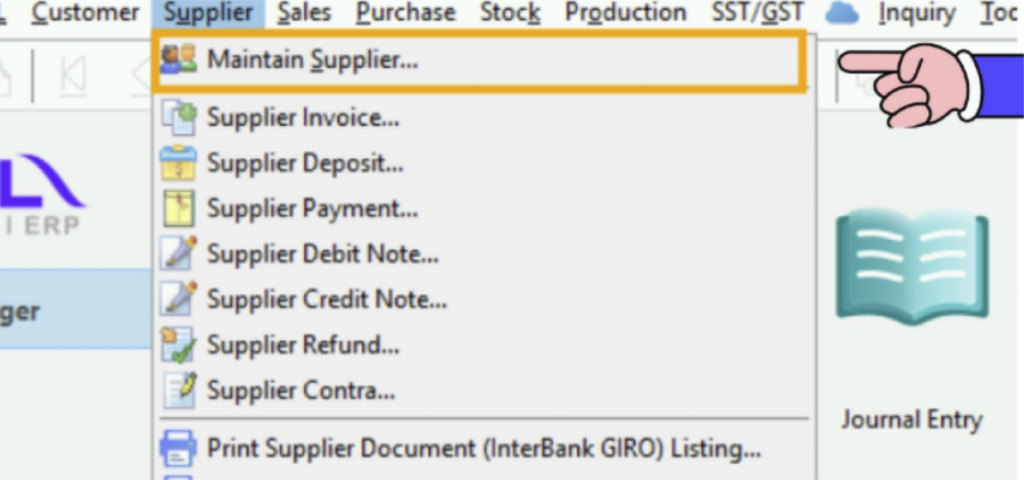
Click Supplier → Maintain Supplier

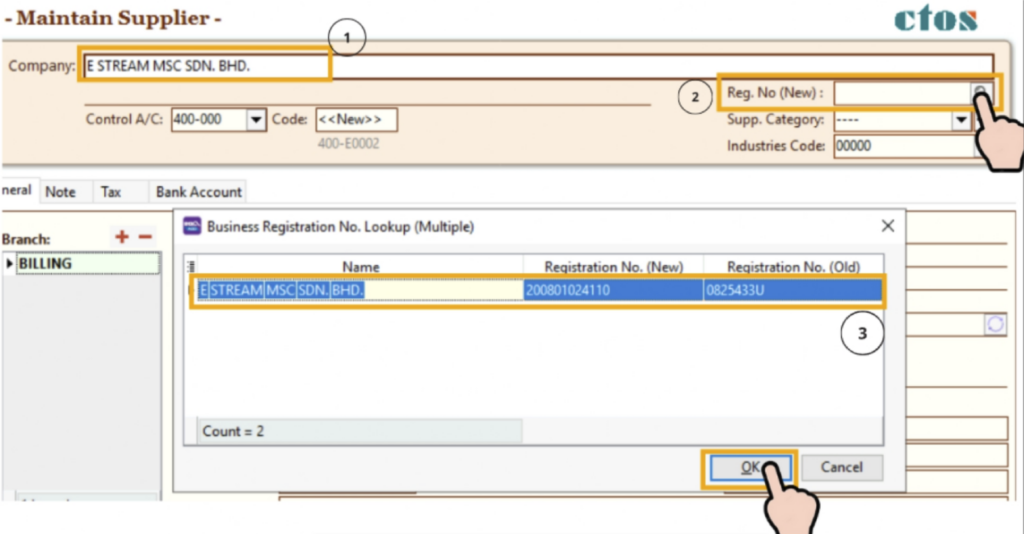
Enter the supplier name
Click the search icon
Select the supplier's BRN No

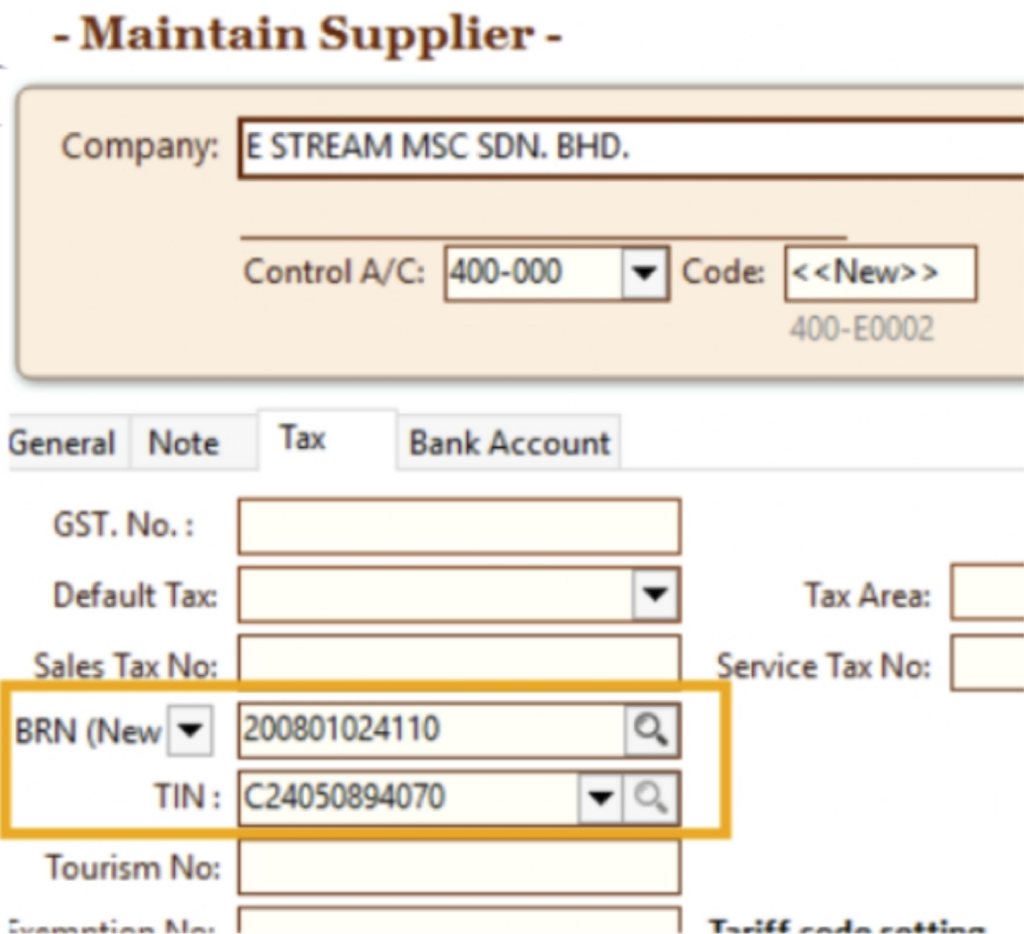
Once the BRN No. is selected, the system will automatically display the BRN No. and TIN No.

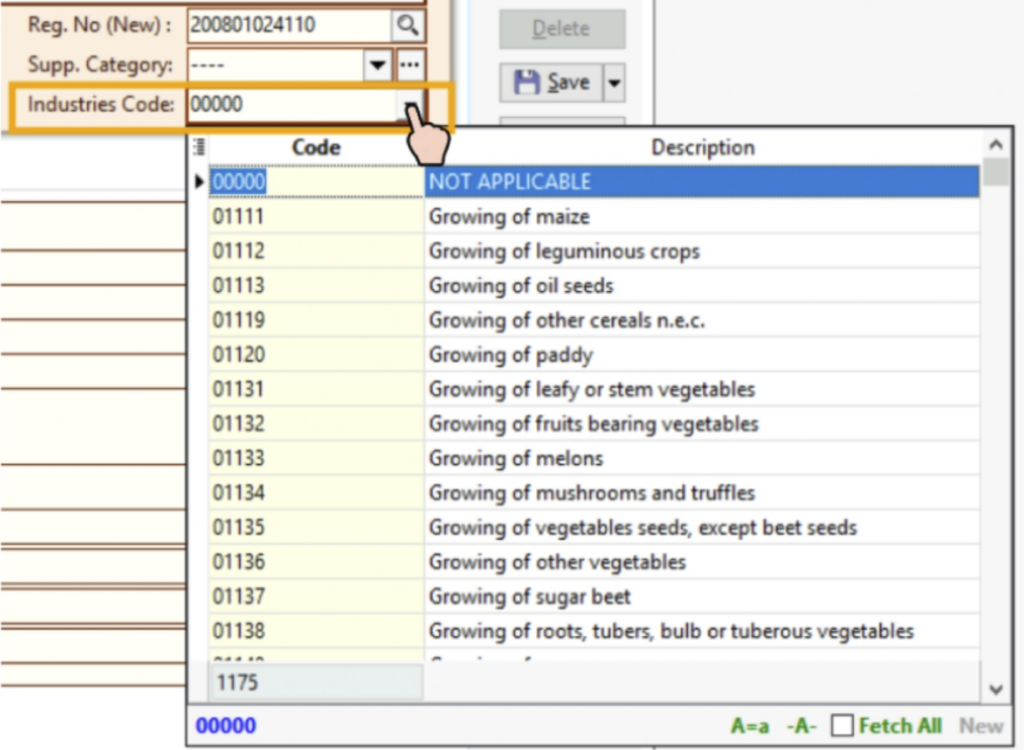
Don’t forget to select the supplier’s industry code (MSIC code)

E-Invoice ID Type Setup Guide

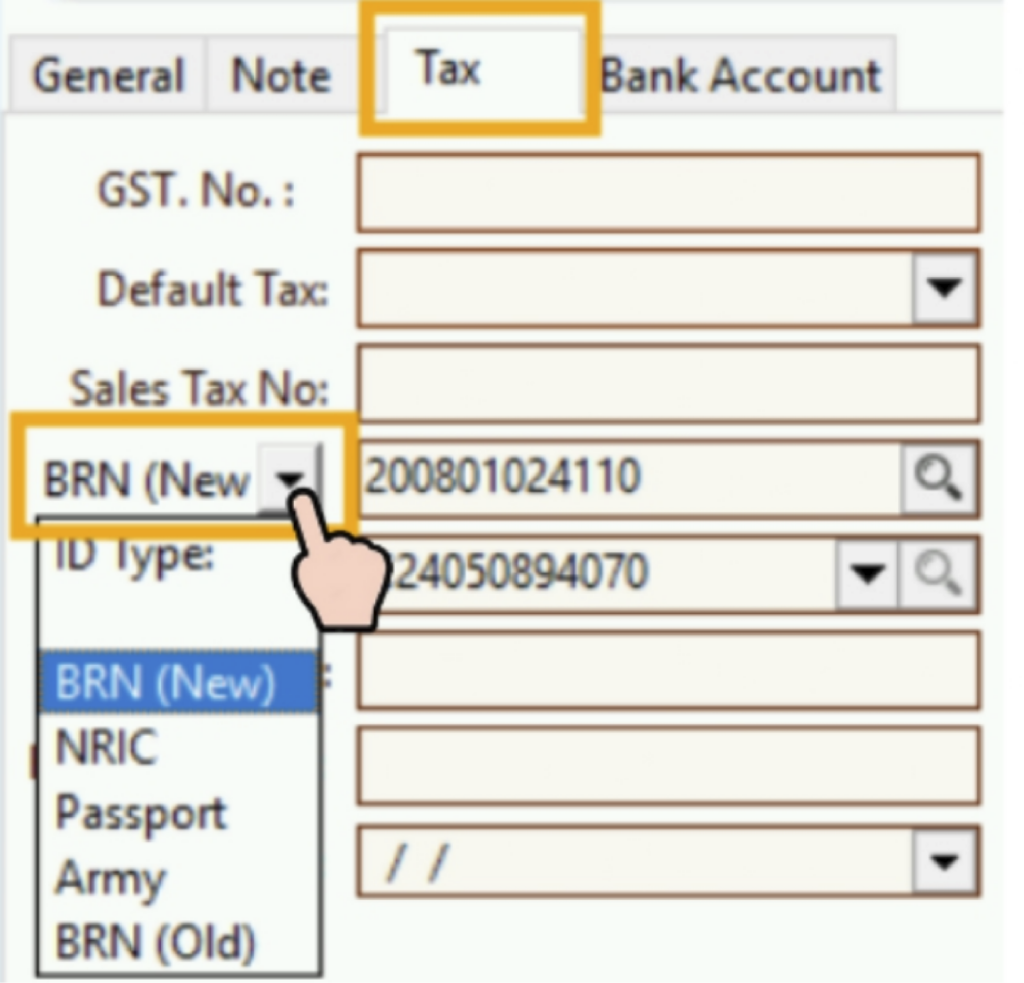
Simply go to Tax and select the required ID Type

System Offers 5 ID Types for Selection:

  1. BRN(New)
  2. NRIC
  3. Army
  4. Passport
  5. BRN(Old)

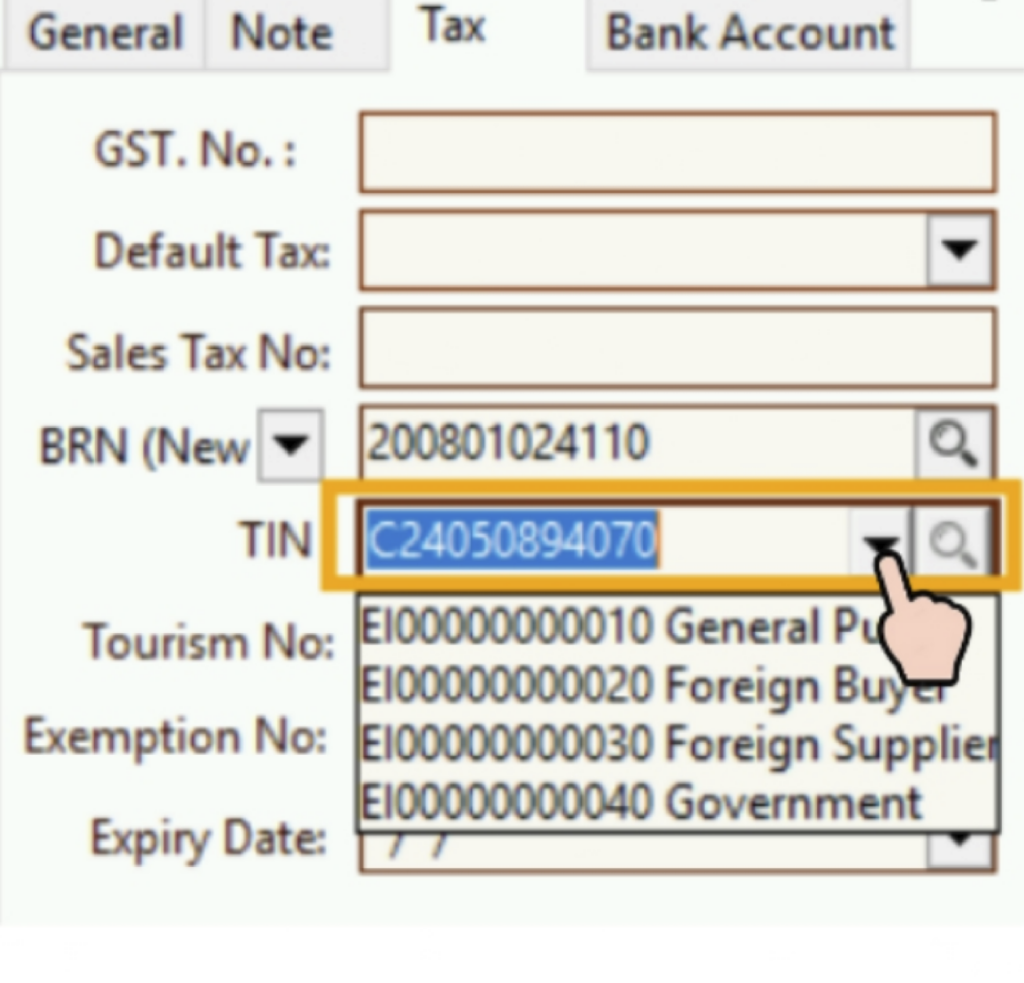
    Choose the corresponding TIN Type and enter the supplier's TIN No.

    System Offers 4 ID Types for Selection:

    1. General Public
    2. Foreign Buyer
    3. Foreign Supplier
    4. Government

      Mandatory Supplier Information

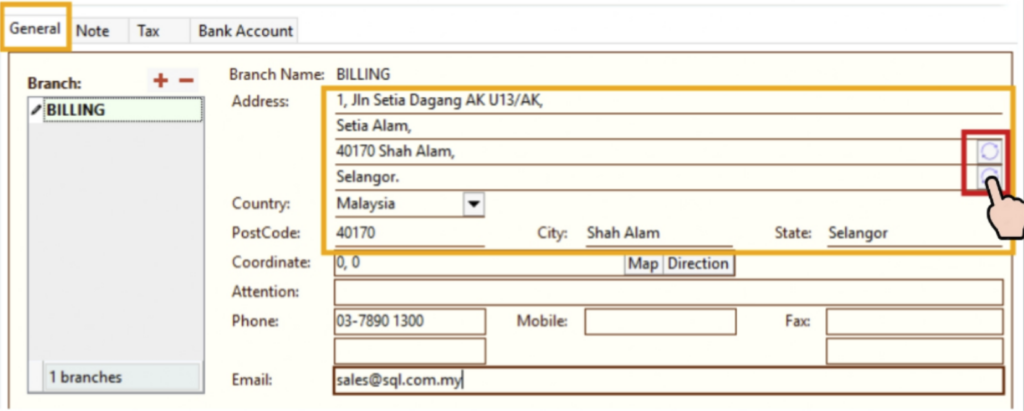
      Go to General and follow the instructions to proceed.

      After entering the postcode, the system will automatically display the city and state.
      If the postcode is changed, click the refresh icon next to the address for automatic updates.

      Ensure the supplier's address is correct before proceeding

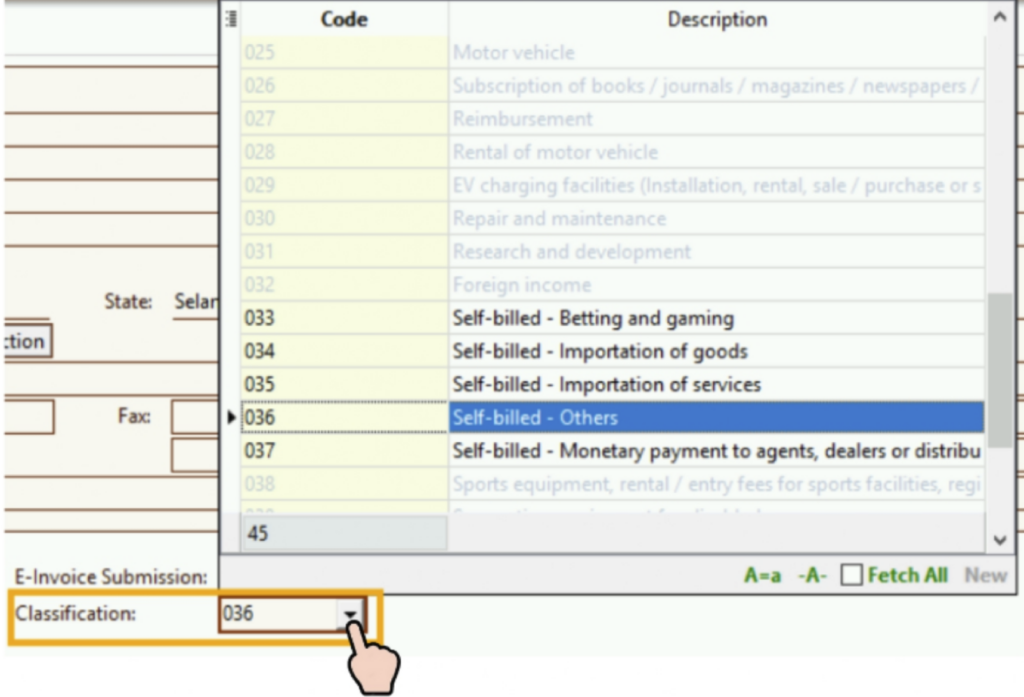
      The supplier’s E-Invoice Submission Type has 3 options:

      1. None → If the supplier has already submitted thee-invoice, no buyer action is needed.

      2. Self-Billed → If the supplier cannot issue an e-invoice, the buyer will issue it on their behalf.

      3. Consolidate Self-Billed → Within a 6-month grace period, e-invoices can be submitted in consolidated mode.

      The system only supports Self-Billed classification codes, and the selected classification code will be automatically applied when issuing invoices.
      Share This Page

      STEP 1: Scan QR Code to pay

      SQL

      STEP 2: Click here to email payment info

      Overview
      👋 Hi! Tap to send an enquiry

      Contact Us

        This site is protected by reCAPTCHA and the Google Privacy Policy and Terms of Service apply.