
How to Check E-Invoice Notifications & Dashboard
E-Invoice Notifications
Description
E-Invoice Notifications are alerts or messages you receive from the e-invoicing system (like a government portal or accounting software) related to your electronic invoices. These help you stay informed about the status and issues of your e-invoices in real time.
What E-Invoice Notifications Usually Include:
Invoice Submission Success
Confirms your e-invoice was submitted and accepted.
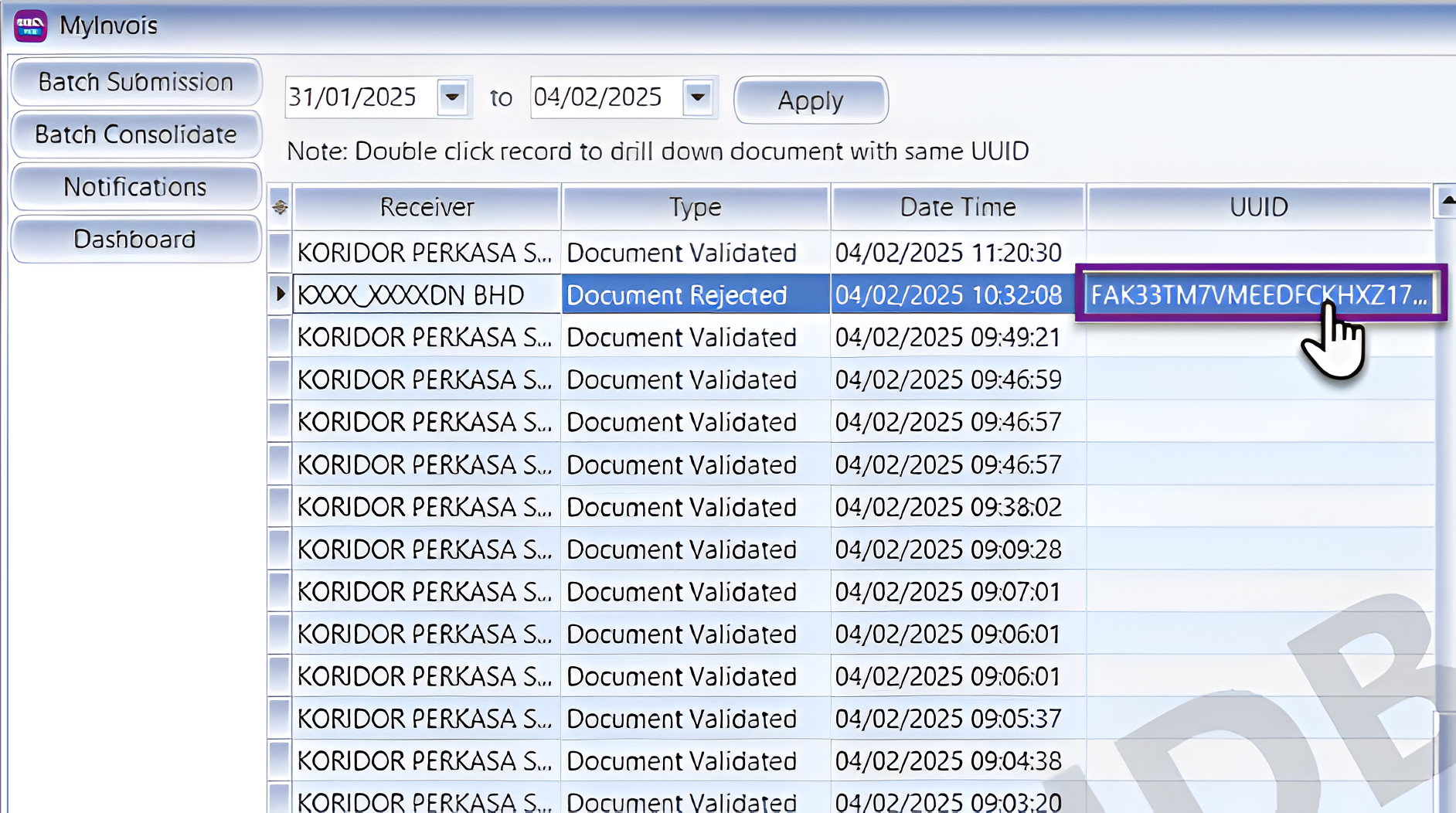
Check which E-Invoices have been rejected by the buyer
Alerts you about errors (e.g., wrong GSTIN, missing fields).
Pending or Processing Status
Shows that your invoice is still being processed.
IRN (Invoice Reference Number) Generated
Confirms that a valid IRN has been created.
Audit or Review Alerts
May notify you if your invoice is selected for review.
Upcoming Deadlines or Reminders
Reminds you to submit invoices or correct errors before due dates.
How to check E-Invoice Notifications in SQL?
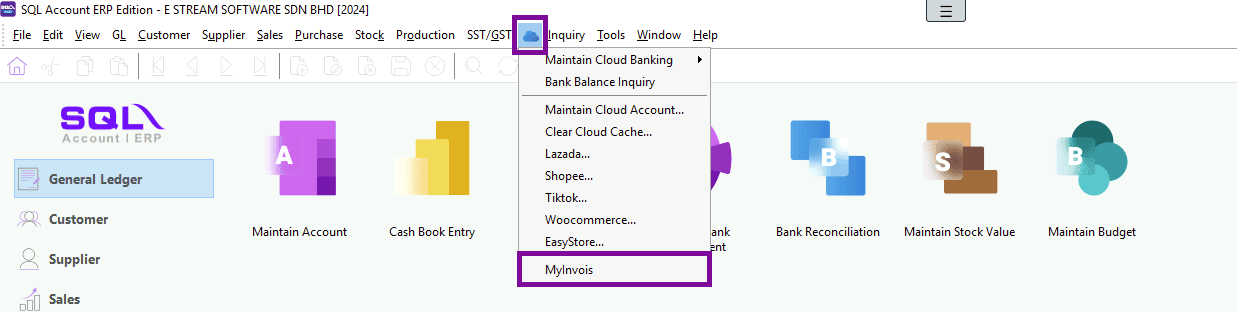
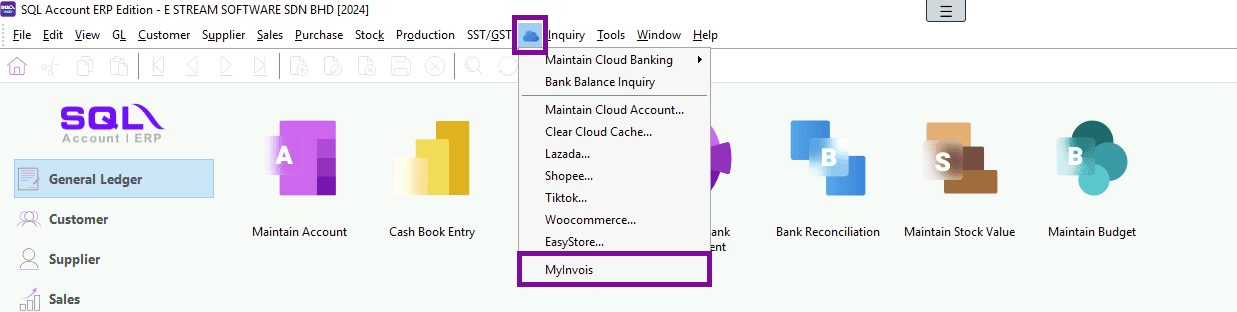
Go to ☁, Click MyInvois

Select Notifications
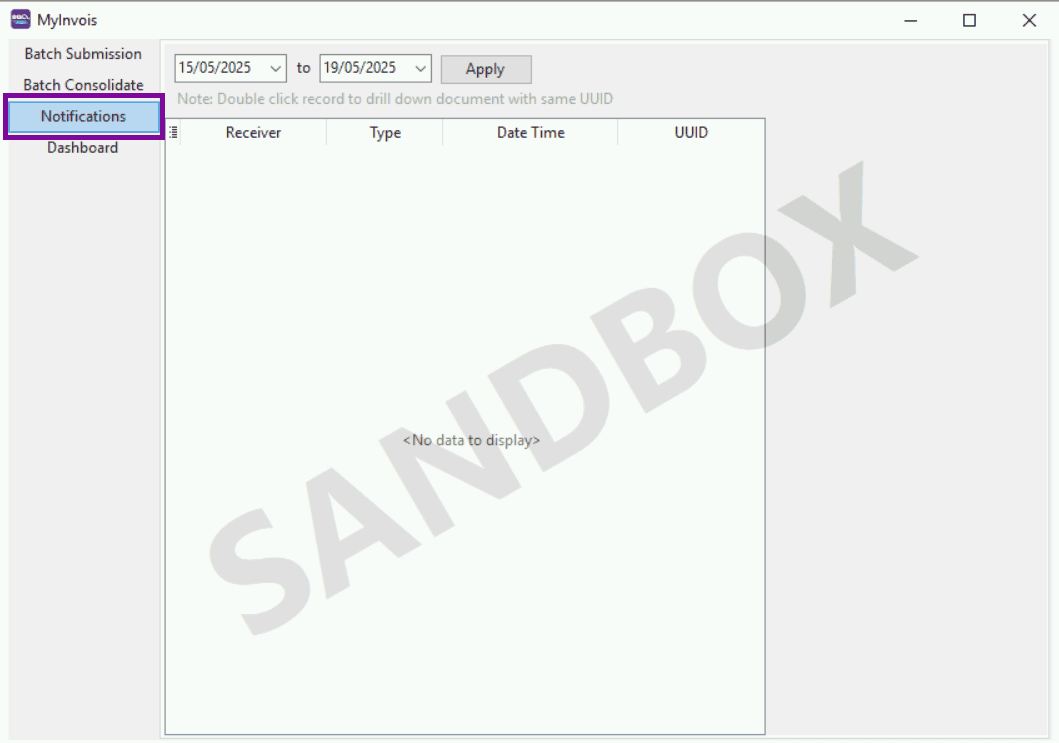
What features are available in Notification?
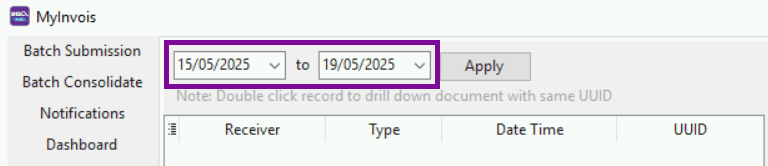
You can filter and retrieve data from no more than 120 hours
Example: 15/05/2025 – 19/05/2025(96 hours)
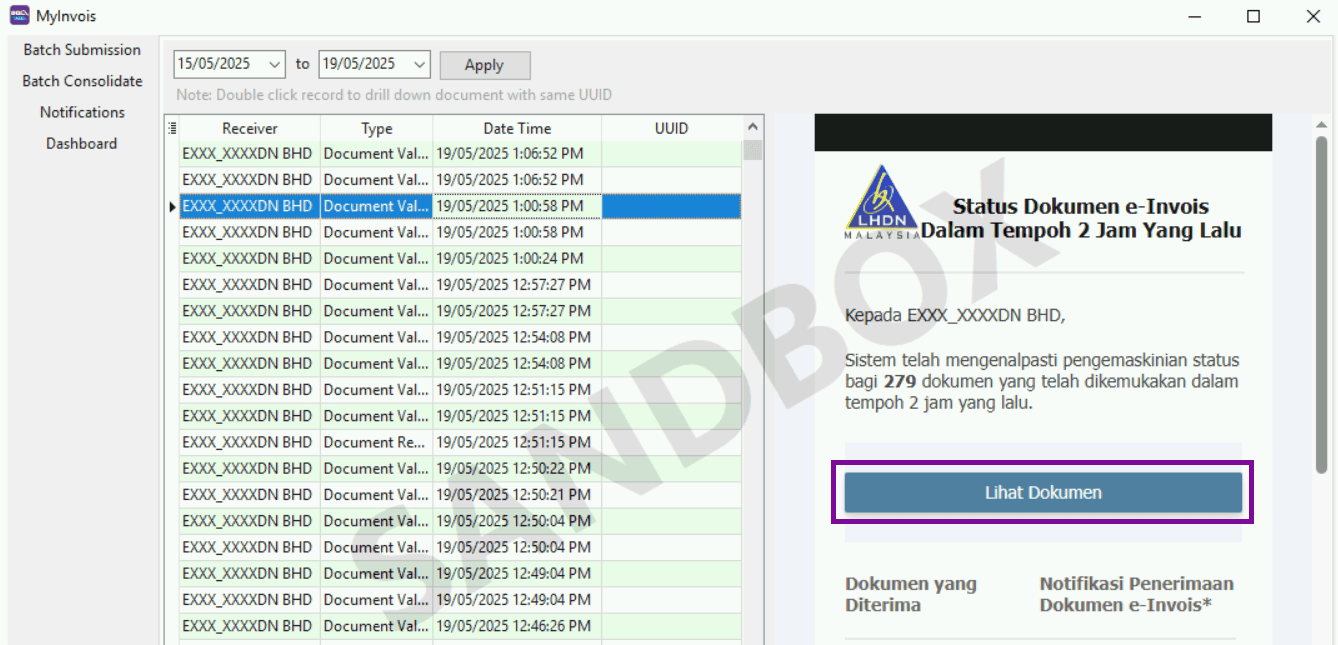
Click here to enter the MyInvois Portal and view the detailed content of the transaction
When the buyer rejects the E-Invoice you submitted, the UUID will be displayed here
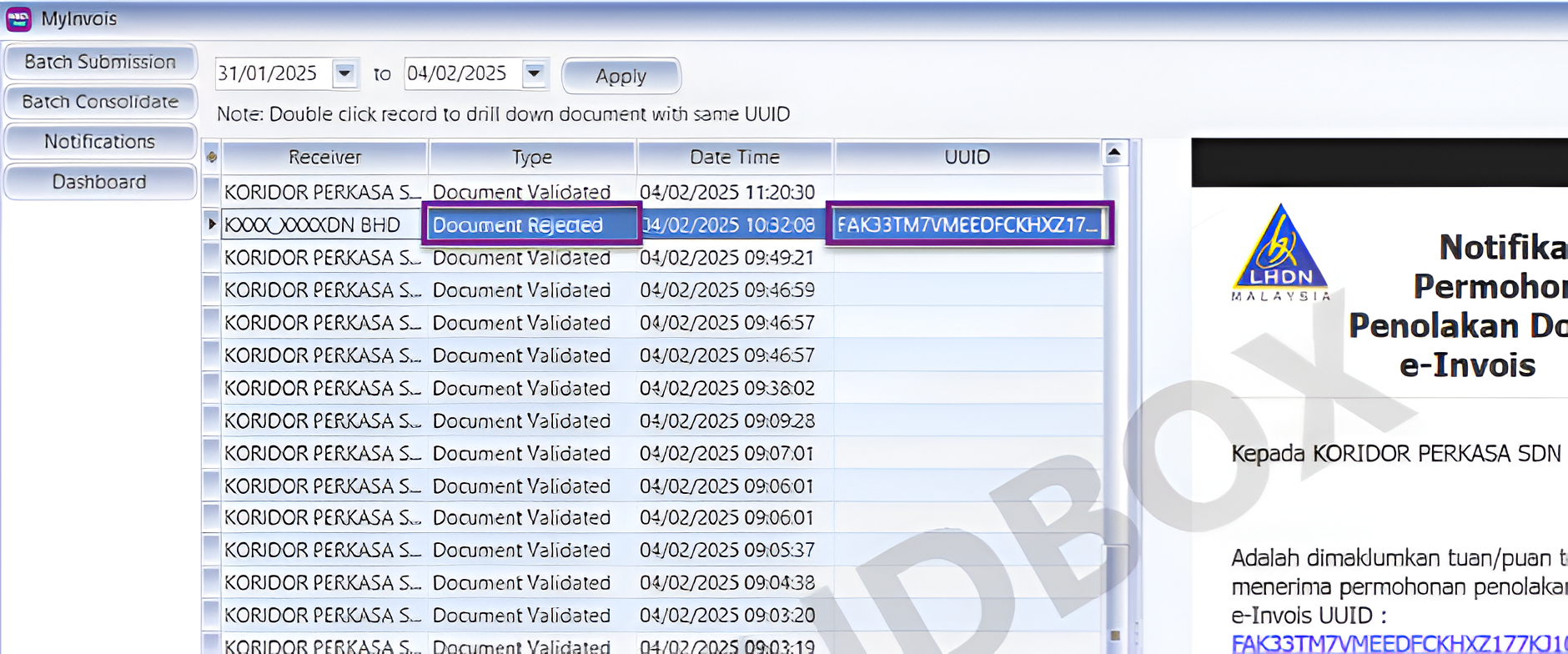
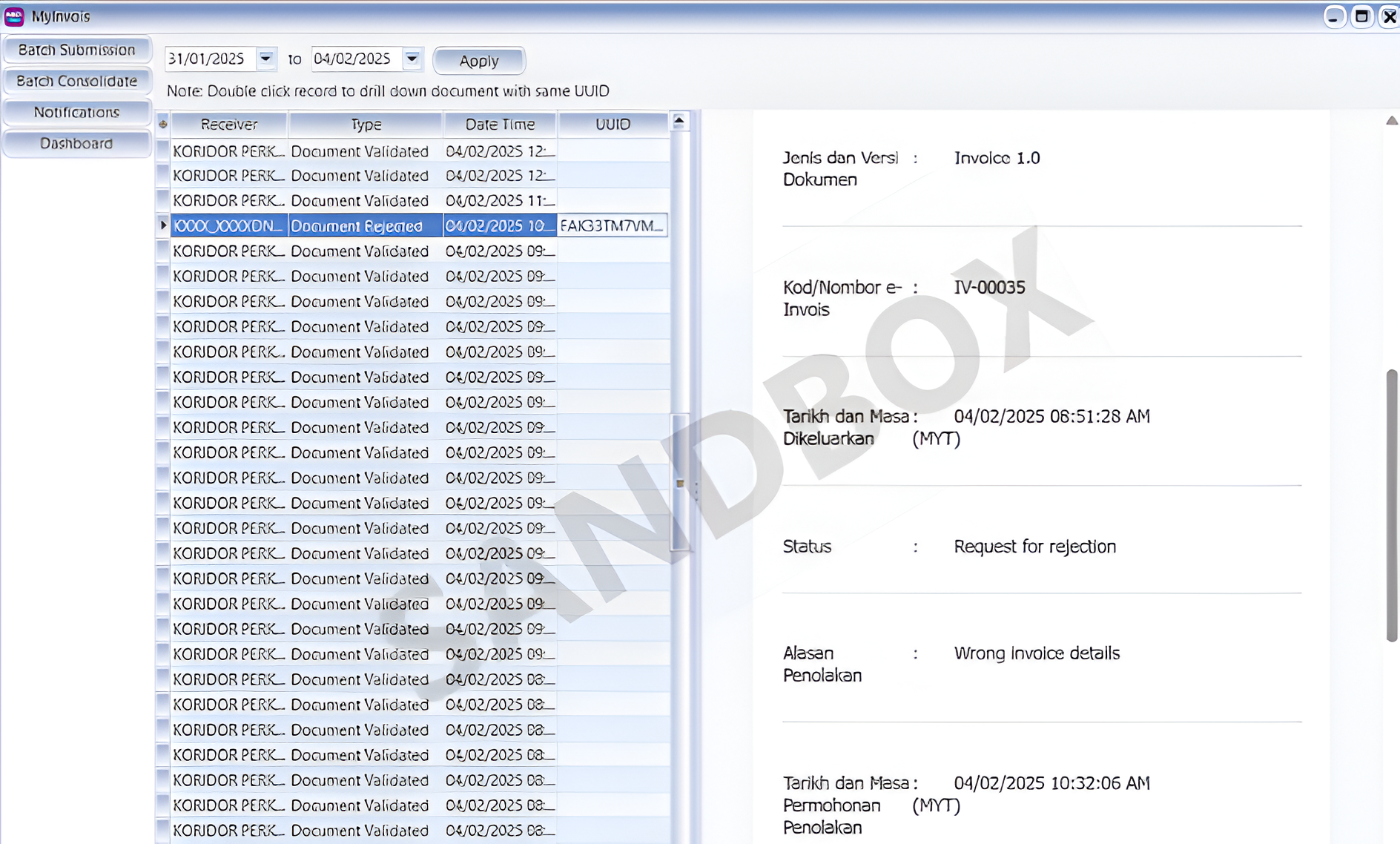
Double-click the UUID to directly navigate to the E-Invoice page, where you can choose whether to cancel the E-Invoice
The right-side page will display the detailed information of all cancelled E-Invoices. You can also scroll down to view more information
E-Invoice Dashboard
Description
An E-Invoice Dashboard is a central, visual interface that shows you an overview of all your e-invoicing activities. It helps you track, monitor, and manage your electronic invoices in real-time.
Think of it like your control panel for everything related to e-invoicing.
How to access E-Invoice Dashboard?
Go to ☁, Click MyInvois

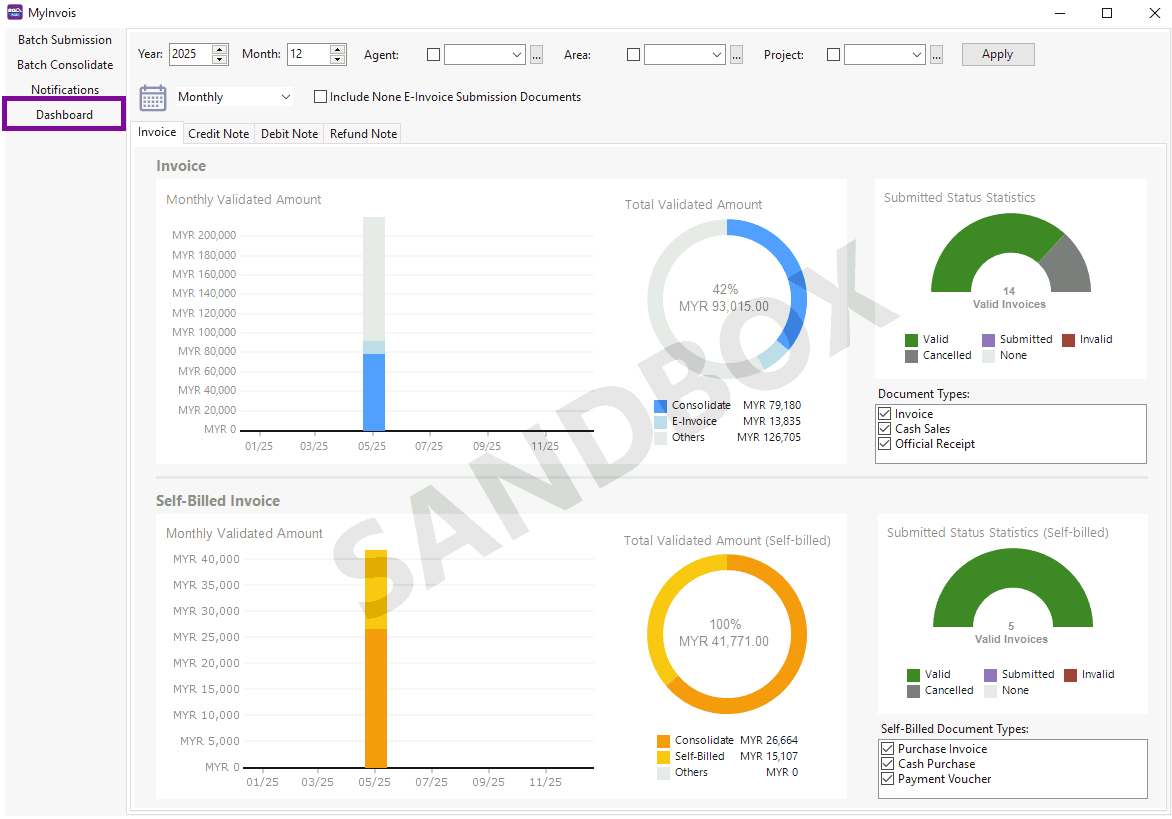
Select Dashboard
How to use the Dashboard to check E-Invoice status?
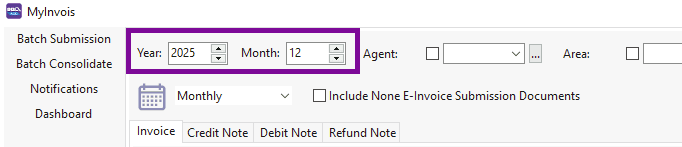
Filter documents by year and month
Note: This refers to the year and month of the submitted E-Invoice
You can change the chart display mode
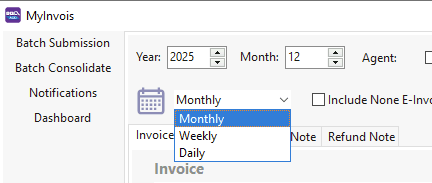
You can filter the E-Invoice status by Agent, Area, and Project
Check E-Invoice Status
Use the Dashboard to see how many invoices have been submitted as E-Invoices by each agent
Track the number of unsubmitted E-Invoices to prevent any omissions
Monitor the total invoice amount submitted each month to ensure accurate financial reconciliation

You can also view records of invoices that have not been submitted as E-Invoices to ensure all invoices are checked

You can view analysis reports for Invoice, Debit Note, Credit Note, and Refund Note
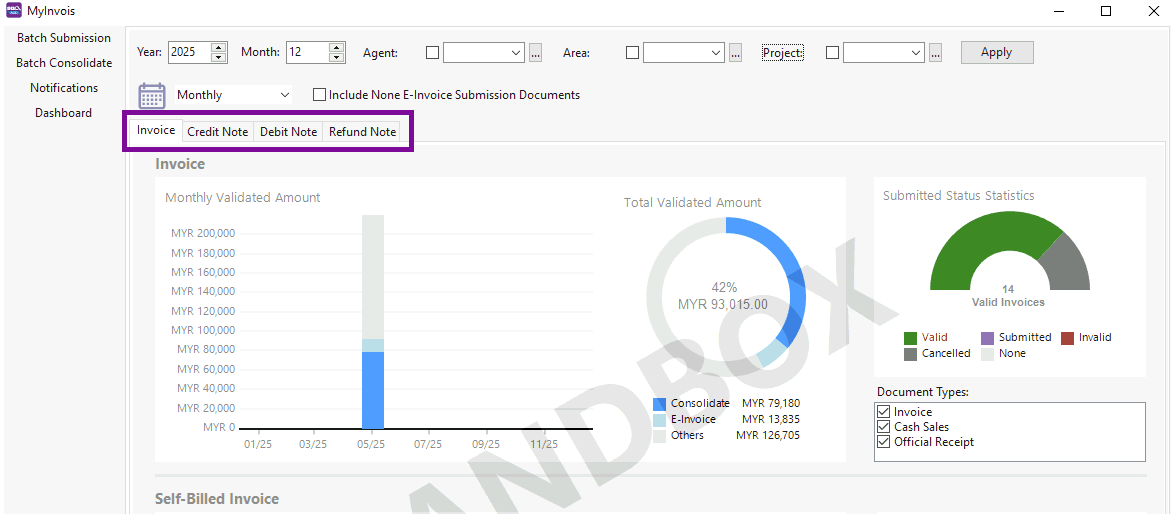
You can view the total amount of Validated E-invoices
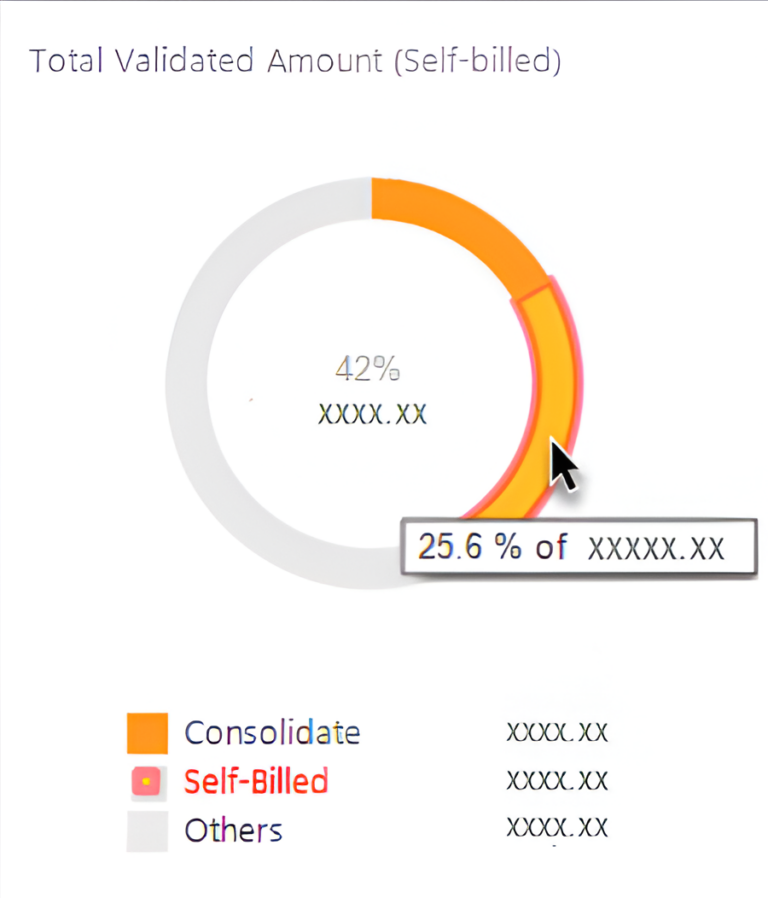
Move the cursor over the chart to view the proportion of each data item
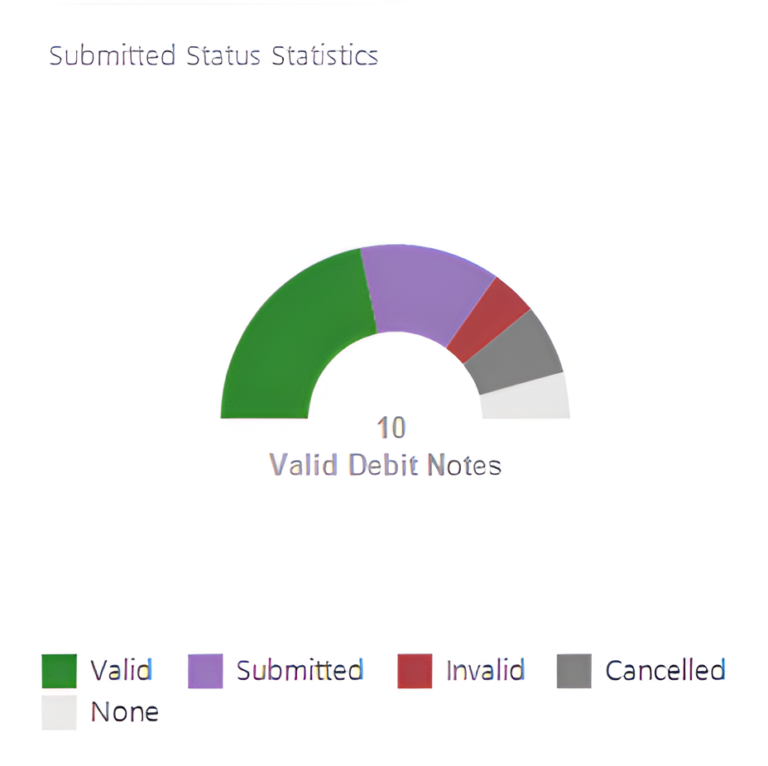
Submission status statistics table
It can be divided into the following 5 statuses:
Valid – Verification successful
Submitted – Submitted successfully + Waiting for verification
Invalid – Verification failed
Cancelled – Cancelled
None – None
Share This Page
Share
Tweet
Related Posts